> For the complete documentation index, see [llms.txt](https://5code.gitbook.io/5code-docs/llms.txt). Markdown versions of documentation pages are available by appending `.md` to page URLs; this page is available as [Markdown](https://5code.gitbook.io/5code-docs/5code-recognition/usage/staff-guide.md).

# Staff Guide

How to use the panel to settle a dispute, and the handful of rules that keep staff decisions defensible.

Open it: `/recognition:admin`, or `/recognition:admin 12 34` to land straight on a pair.

## The panel at a glance

The panel looks like a tablet. The icon bar on the left has one page each:

| Page         | What it is for                                                                                  |
| ------------ | ----------------------------------------------------------------------------------------------- |
| **Overview** | Live numbers: players online, scans running, proofs in the last 24 h, open deaths, things to do |
| **Pair**     | What two players know about each other, both ways                                               |
| **Lookup**   | Find one character and see everything about them                                                |
| **Timeline** | One player's history, day by day                                                                |
| **Deaths**   | New Life Rule cases: keep or wipe memories                                                      |
| **Clothing** | What each clothing item hides, and Auto-scan (classifier level)                                 |
| **Audit**    | Every admin action, with its reason, and **Restore**                                            |
| **Settings** | Change `config.lua` values live (settings level)                                                |

Pages and buttons you do not have the level for are hidden, and a small chip at the top says **Full access**, **Limited access** or **View only**. Hover any **(i)** for a short explanation.

## Finding a player

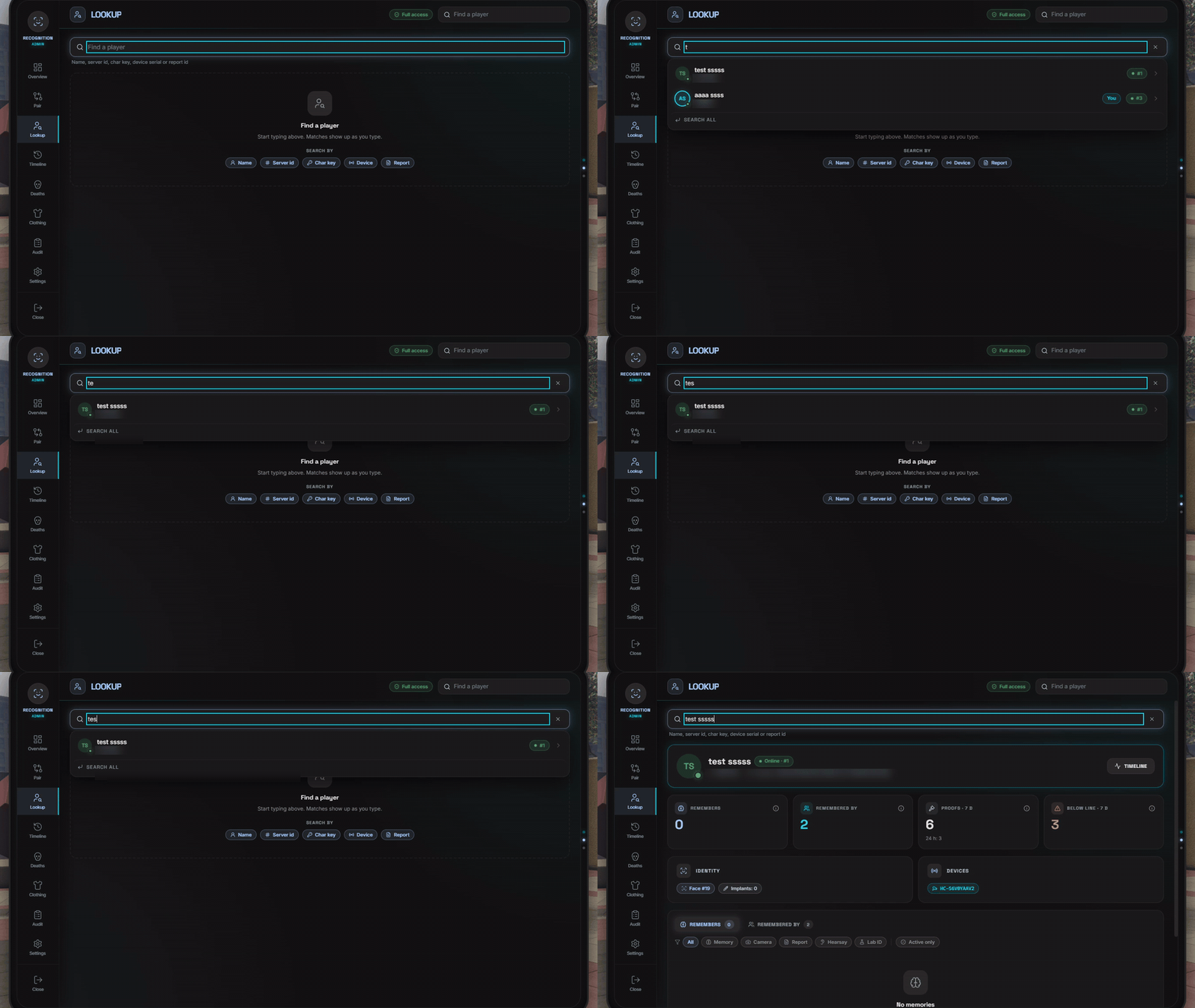
Type into **Find a player** (top right, or the **Lookup** page). Matches show up as you type. You can search by:

| Search by     | Example                                        |
| ------------- | ---------------------------------------------- |
| **Name**      | Character or account name                      |
| **Server id** | `12`                                           |
| **Char key**  | The stored character key, or its first letters |
| **Device**    | A device serial: `HC-`, `VC-` or `MS-`         |
| **Report**    | A report id: `RC-`, `WS-` or `DS-`             |

Offline characters are found too.

<figure><img src="https://3846142922-files.gitbook.io/~/files/v0/b/gitbook-x-prod.appspot.com/o/spaces%2FCODR6jMYqH8PCF3ZsSXv%2Fuploads%2Fgit-blob-8ffb24ee682e56cfaf55d6440634a98031802a78%2Fadmin-lookup-suggest.gif?alt=media" alt="Lookup with live suggestions"><figcaption><p>Start typing: online players, offline characters, device owners and report authors show up as you type.</p></figcaption></figure>

The character card shows who they remember, who remembers them, their proofs of the last 7 days (and how many were below the act line), their identity (face number, implants, next implant) and their devices. Each memory row opens the pair view, and the **Timeline** button jumps to their history. The **Danger zone** at the bottom holds **Reset face** and **Implant wait** (identity level only).

## Judging a metagaming report

This is what the panel exists for. The usual report reads *"he knew my name and we've never met"* or *"I was masked and he called me by name"*.

### 1. Open the pair

`/recognition:admin <accuser id> <accused id>`, or the **Pair** page: pick **A** (the one who looks) and **B** (the one being looked at). The swap button turns them around.

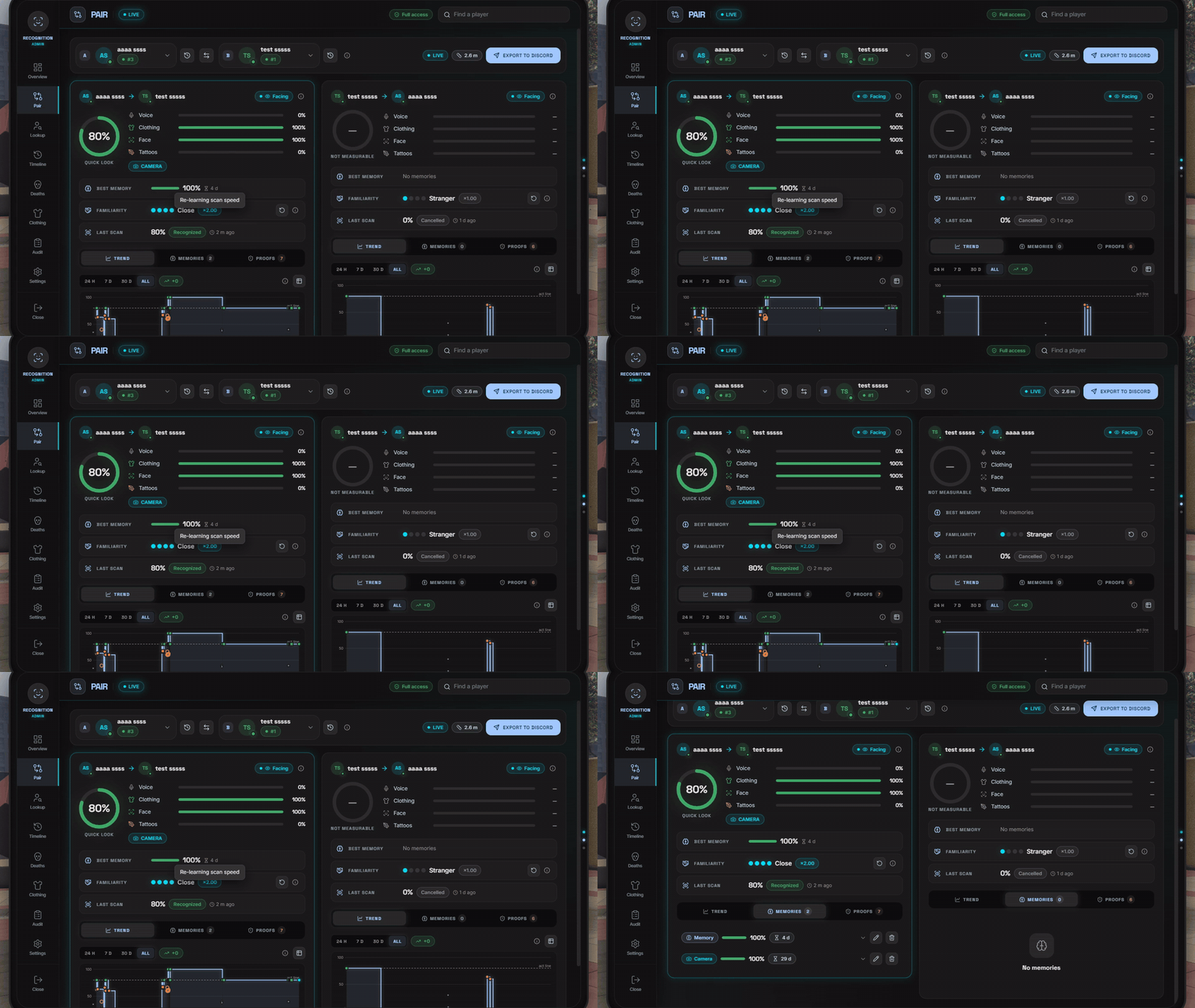
You get both directions side by side. Read the one that matters, **accused → accuser**:

| Part of the card                      | The question it answers                                                                                     |
| ------------------------------------- | ----------------------------------------------------------------------------------------------------------- |
| **% ring** and the four cue bars      | What could they reach on the other one right now? A running scan, a live result, or an estimate from memory |
| **Best memory**                       | Did their character have a memory of this person at all? How strong, and how long is it still valid?        |
| **Familiarity**                       | How often they have recognized this person before                                                           |
| **Last scan**                         | When did they last actually look at them, and what did it produce?                                          |
| **Trend** · **Memories** · **Proofs** | How the number moved over time, every memory with its source, and what they did                             |

<figure><img src="https://3846142922-files.gitbook.io/~/files/v0/b/gitbook-x-prod.appspot.com/o/spaces%2FCODR6jMYqH8PCF3ZsSXv%2Fuploads%2Fgit-blob-21e9c08659bc50be692a30ed1aed333b846f178e%2Fadmin-pair.gif?alt=media" alt="The pair view"><figcaption><p>Both directions side by side: ring, cue bars, best memory, familiarity and the last scan.</p></figcaption></figure>

Small chips add detail: **CAMERA** (a hidden-camera scan), **VOICE CHANGER**, **DISGUISE** (learned behind a mask), **MERGED** (a disguise memory folded back into the real one), and **LIVE** while the pair view updates live.

### 2. Read both numbers

Every proof carries two numbers:

> **Killed** · Then **54 %** · Now **20 %** · *Below 80%*

* **Then 54 %** is what their character genuinely remembered.
* **Now 20 %** is what a fresh look at the victim at that second could have reached, for example because the victim was masked.

Both are always stored. The pair tells you the story:

| Pattern                                | What it usually means                                                                                                  |
| -------------------------------------- | ---------------------------------------------------------------------------------------------------------------------- |
| High first number, high second         | They knew them and could see them. Fine                                                                                |
| High first, **low second**             | They knew them from before, but had no in-game way of knowing it was them **right then**. This is the metagaming shape |
| **Low first**, any second              | They acted on somebody they did not know. Not necessarily metagaming: could just be bad roleplay                       |
| No memory at all, and they used a name | Look outside the script: Discord, stream, a friend telling them                                                        |

{% hint style="warning" %}
A low second number is not proof on its own. Open the proof in the **Timeline**: it shows the victim's face cover at that moment and the cue bars behind the second number.
{% endhint %}

### 3. Check for a disguise memory

If the accused has a memory badged **DISGUISE**, they legitimately knew "the masked guy" without knowing who was under it. That is the system working, not a violation.

A player who calls the masked guy by his real name while holding only a disguise memory is the case you are looking for.

### 4. Use the timeline

**Timeline** → pick the accused. You get a day-by-day list with one short line per event. Click a line for its details.

* Pick the window: **24 h**, **7 d** or **30 d**.
* Filter by kind: **Scans**, **Proofs**, **Papers**, **Deaths**, **Admin**, **Other**.
* The **Below 80%** chip shows only acts below the act line.
* Proofs that happened together show as one **Incident with …** line, so a whole shooting reads as one entry rather than forty aim records.

The timeline also carries their scans, deaths, identity changes and lab results, so "when did they last actually look at this person" is one glance.

### 5. Export it

**Export to Discord** on the pair view sends the whole thing to your staff channel: both characters, every memory, the last scans, a short trend line and, if your server allows it, an attached file with the full data. That is your paper trail for an appeal.

Disguise memories are only included when you tick **Include disguise rows**. Licence identifiers are left out by default.

## Fixing things

### Editing a memory

**Pair** → **Memories** tab → the **pencil** on the row.

Four sliders, a "valid until" field, the introduced name, and a **reason** (required, 3–255 characters).

* The label and the source cannot be changed.
* Setting "valid until" into the past expires it right now.
* If your change makes the memory invalid, that pair's live result ends immediately.

### Deleting one

The **bin** icon on the row, with a reason, and an optional switch to reset that pair's familiarity at the same time.

### Undoing yourself

**Audit** → find the row → **Restore**. It puts back exactly what was there. It refuses if a newer memory of that source exists, if the character's identity changed since, or if the original expiry has already passed.

### Deciding a death

The **Deaths** page explains itself at the top. The rule: when someone dies and **respawns**, *they* forget the people who saw it; the witnesses keep their own memories. **Revived = remembered**, **Respawned = forgotten**.

It opens on **Active now**. Pick a status (**Down now**, **Waiting**, **Respawned**, **Revived**, **Expired**, **Kept by admin**, **Wiped by admin**) to see past cases. Each card shows how they died, the killer and the witnesses, with two buttons:

| Button            | What it does                                                                                                          |
| ----------------- | --------------------------------------------------------------------------------------------------------------------- |
| **Keep memories** | Nobody forgets anything for this death. After a wipe it reads **Restore memories** and brings the wiped memories back |
| **Wipe memories** | The person who died forgets the witnesses now                                                                         |

The buttons need the **edit** level. Every choice needs a reason and is logged.

## Changing settings in game

**Settings** page. Almost every value in `config.lua` is here, live, with no restart. Settings are sorted into groups with plain names (**Scanning**, **Memory**, **Face implant**, **Police, reports and MDT** and so on), and there is a search box.

Each row has a plain title and an **(i)** with a short explanation and the `config.lua` path it belongs to.

| On a row          | Meaning                                                                    |
| ----------------- | -------------------------------------------------------------------------- |
| A coloured dot    | Changed in game, or changed but not saved yet                              |
| **File: …**       | What `config.lua` says, shown when the live value differs                  |
| Padlock           | Cannot be changed here: config file only, or it needs a higher admin level |
| Restart icon      | Saved now, used after the next restart                                     |
| **Reset to file** | Puts the `config.lua` value back                                           |

Use the **Changed** filter to see at a glance what has drifted from the file.

### The rules

* Everything is clamped. If you type a value outside the safe range, the server stores the clamped value and shows you what it really saved. If it is plainly invalid, that one row is rejected and the rest of your change still applies.
* Related values are checked against each other: a memory tier cannot cross the one below it, and the minimum to save cannot exceed the act line.
* Rows marked **After restart** are saved but not applied until the next restart.
* Everything is logged with before-and-after, and posted to your admin Discord channel. "Who lowered the implant price" is always answerable.
* **Reset all to file defaults** is the safe way out of a bad experiment.

### What you cannot change here

| Locked                                                                          | Why                                                                          |
| ------------------------------------------------------------------------------- | ---------------------------------------------------------------------------- |
| Webhook URLs, the secret, photo keys and everything else in `config_server.lua` | Secrets never leave the server. They are not even shown, masked or otherwise |
| Framework, inventory, voice, death, MDT and every other integration selector    | Swapping an adapter mid-session is not safe. Config file and a restart       |
| Every permission setting                                                        | The settings page can never widen its own access                             |

{% hint style="warning" %}
The settings level can turn off proofs (`Config.Proof.Enabled`). That change is itself an audit row and a Discord post, which is exactly how such a change should look. Grant `recognition.admin.settings` narrowly.
{% endhint %}

## The new-clothing-items notice

After a restart you may see one line in the console and a banner in the panel:

> **New clothing items**: 312 new clothing and prop items were found since the last check.

That means somebody installed an EUP or addon clothing pack, or the game updated. Until those items are classified:

* an unknown **mask** counts as covering the whole face;
* an unknown **top** counts as long sleeves;
* an unknown **hat or helmet** behaves like a cap: face mostly visible, hair hidden;
* an unknown **arms item** (gloves slot) leaves the hands bare.

Three buttons:

| Button            | What it does                                                                                            |
| ----------------- | ------------------------------------------------------------------------------------------------------- |
| **Run Auto-scan** | Classify them properly. It runs on your game, so keep the window open; the panel shows how long is left |
| **Accept counts** | Store the new numbers without scanning. The items stay unknown                                          |
| **Dismiss**       | Hide the notice until the numbers change again                                                          |

Nothing is ever scanned automatically. See [Clothing Classifier & Auto-scan](/5code-docs/5code-recognition/features/clothing-classifier.md).

## Rules for staff

* **You cannot look at your own pairs.** By default the panel refuses any pair or player where your own character is involved (it shows **This is you**). Otherwise you would learn in character who remembers you. The server console is exempt. If your server turns this off (`Config.Admin.BlockSelfView`), every self-view is posted to the admin channel.
* **Every edit needs a reason.** It is stored and shown in the **Audit** log.
* **The logs are tamper-evident.** Proofs and the audit log cannot be changed quietly. Run `/recognition:verifyproofs` if you ever need to show that nothing was edited after the fact.
* **Grant the smallest level that does the job.** `view` for moderators, `edit` for senior staff, `settings` for the people you would trust with the config file.

## Useful commands

| Command                                                      | Level                                               |
| ------------------------------------------------------------ | --------------------------------------------------- |
| `/recognition:admin [idA] [idB]`                             | view                                                |
| `/recognition:check <idA> <idB>`                             | view: prints both directions to the console         |
| `/recognition:verifyproofs [fromId]`                         | view: checks that no proof or audit row was changed |
| `/recognition:status`                                        | view: running scans, caches, detected integrations  |
| `/recognition:selftest`                                      | view: the installation check                        |
| `/recognition:export <idA> <idB> [note]`                     | export                                              |
| `/recognition:tags [id]`                                     | classifier                                          |
| `/recognition:resetidentity <id\|charKey> <reason>`          | identity                                            |
| `/recognition:freeimplant <id> <reason>`                     | identity                                            |
| `/recognition:implantcooldown <id\|charKey> <days> <reason>` | identity                                            |
| `/recognition:prune`                                         | settings                                            |
| `/recognition:debug`                                         | settings                                            |

Full list with syntax: [Commands](/5code-docs/5code-recognition/usage/commands.md).

{% hint style="info" %}
When you report a bug to support, include the output of `recognition:selftest` from your server console. It saves a round of questions.
{% endhint %}


---

# Agent Instructions
This documentation is published with GitBook. GitBook is the documentation platform designed so that both humans and AI agents can read, navigate, and reason over technical content effectively. Learn more at gitbook.com.

## Querying This Documentation
If you need additional information that is not directly available in this page, you can query the documentation by asking a question.

Perform an HTTP GET request on the following URL with the `ask` and `goal` query parameters:

```
GET https://5code.gitbook.io/5code-docs/5code-recognition/usage/staff-guide.md?ask=<question>&goal=<user_goal>
```

`ask` is the immediate question: it should be specific, self-contained, and written in natural language.
`goal` is what the user is ultimately trying to achieve, the reason they need the answer. Sharing it helps GitBook give you a better, more relevant answer. A goal is most helpful when it describes the outcome the user wants rather than restating the question. For example, with `ask=how do I create an API token`, a goal like `automate deployments from our CI pipeline` lets GitBook tailor the answer to that use case.

The response will contain a direct answer to the question and relevant excerpts and sources from the documentation.

Use this mechanism when the answer is not explicitly present in the current page, you need clarification or additional context, or you want to retrieve related documentation sections.